

How to Become an Operator
Na této stránce
The OP (Operator / Administrator) role gives you total control over your Minecraft server. By being an OP, you get access to all in-game commands: switching game modes (creative/survival), altering weather, teleporting, kicking disruptive players, and managing server settings in real time.
(Note: The very first time, you must assign it directly from our Control Panel's Console).
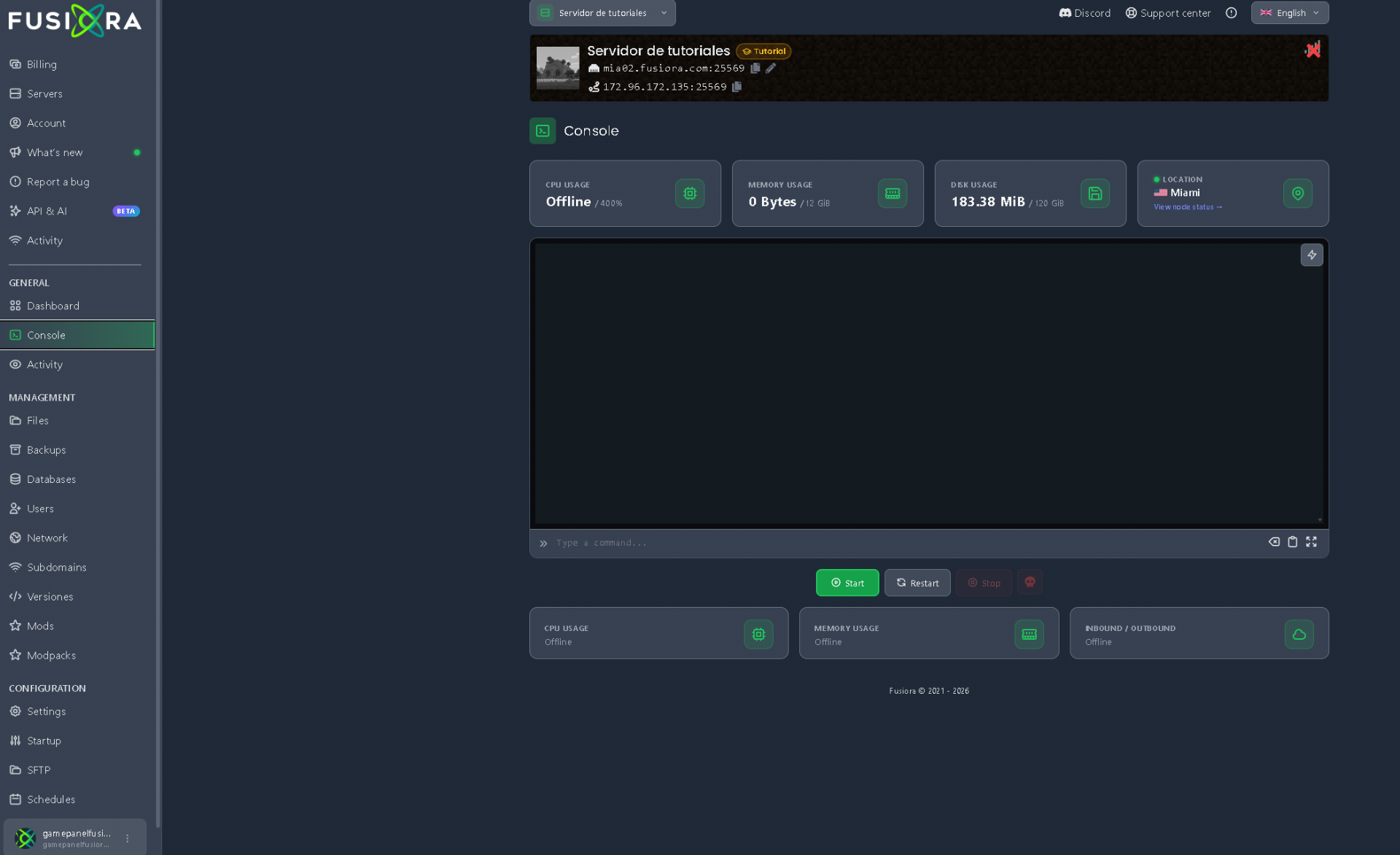
1. How to give yourself OP from the Console (Step-by-step)
For security reasons, Minecraft does not allow players to grant themselves permissions from inside the game. Initial assignment must always be performed through the panel:
- Log in to our control panel and go to the Console tab.
- In the console's command bar, type:
op YourUsername
(replaceYourUsernamewith your exact Minecraft nickname). - Press Enter.
- The console will confirm with the message: Made YourUsername a server operator.
If you were already connected inside the server when sending the command, you will see a yellow notification in the in-game chat stating: You are now op!.
(Remember: in our web console, never use the forward slash / at the beginning of the command).
2. How to remove OP from a player (Deop)
If you ever want to revoke administrator permissions from someone (or from yourself to play a clean survival session without cheats):
- Go to our panel's Console.
- Type the following command:
deop PlayerUsername - Press Enter. The player will immediately lose access to all administrative commands.
3. Useful commands you can run once you are OP
Once you have OP, you can press the T key inside Minecraft and use any command in the chat (this time you must include the forward slash /):
- 🛠️ Change game mode:
/gamemode creative(creative mode)/gamemode survival(survival mode)/gamemode spectator(spectator mode) - ☀️ Control the environment:
/time set day(set time to daytime)/weather clear(clear rain/storms) - 📍 Teleportation:
/tp YourName Friend(teleport to a friend)/tp Friend YourName(bring a friend to you) - 🛡️ Moderation:
/kick Player(kick player from the server)/ban Player(permanently ban player from joining)
4. Granting OP from directly inside the game
Once you are an operator, there is no need to return to the panel every time you want to grant permissions to a friend:
- You can type directly in the Minecraft in-game chat:
/op YourFriendsName
❌ What NOT to do
- Type the forward slash
/in the web console: A very common mistake is writing/op YourNamein our panel's console. Remember that in the web console commands always go without a slash (op YourName); the slash is only typed within the in-game chat. - Misspell the username: Minecraft usernames are strictly case-sensitive. Type your nickname exactly as it appears in-game.
- Give OP to players you don't know: Never hand out operator permissions as favors or to people you just met. If you want to create balanced staff roles (like VIP or Moderator without destructive command access), we recommend installing a permissions plugin like LuckPerms.
- Forget the prefix on Bedrock accounts (GeyserMC): If you play from mobile or console on a server with Geyser, keep in mind that your username often includes a special prefix (like a dot
.or an asterisk*). You must include it when granting OP (for example:op .YourBedrockName).