

How to Create Backups
本页内容
Regularly creating backups is the golden rule for taking care of your server. In our hosting, we want your progress to always be protected against incorrect mod or plugin configurations, destructive commands, or any accidental mistakes in-game.
(Note: You manage this entire process directly from our Control Panel).
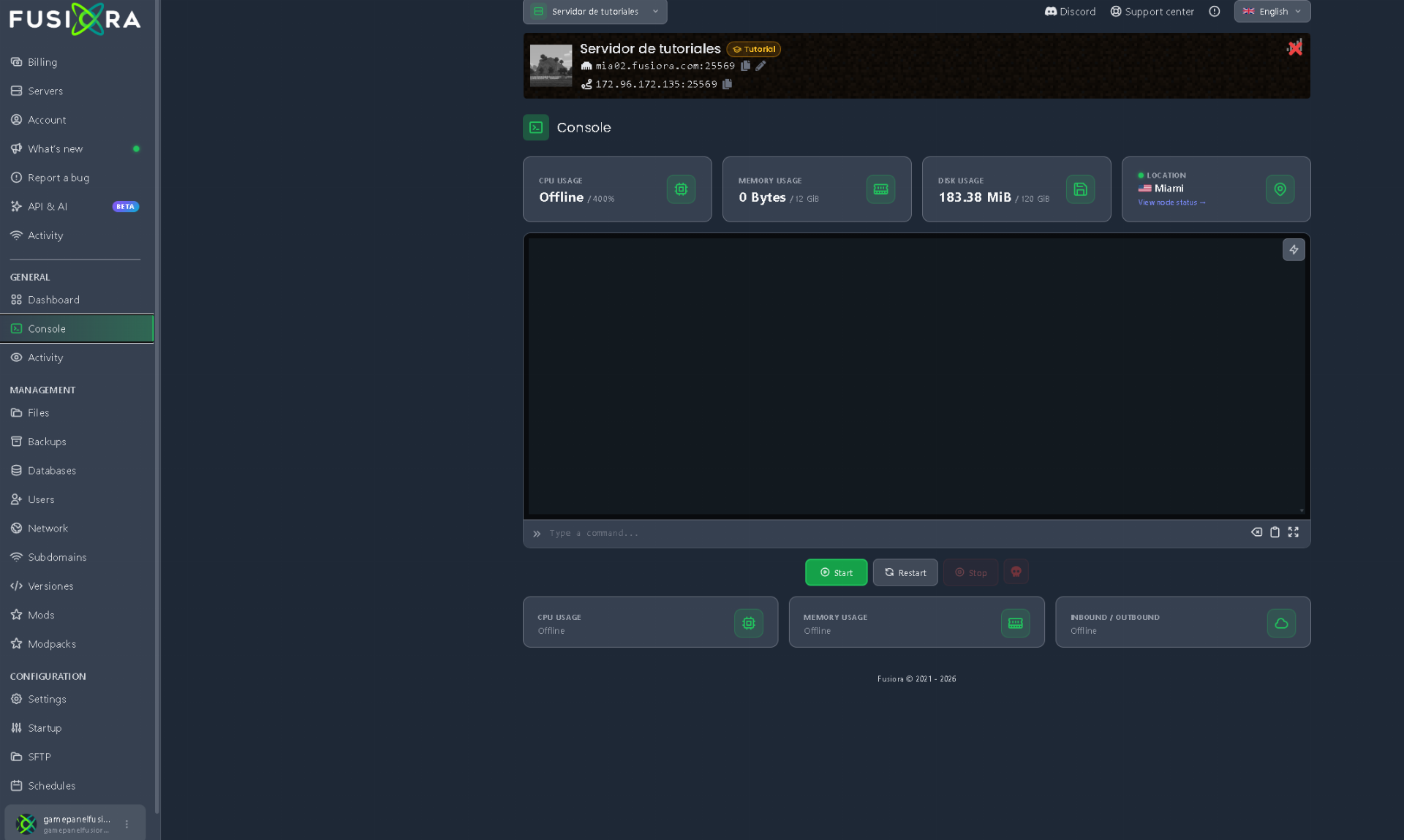
1. Fast method: Create a manual Backup with one click
Our control panel includes a built-in tool to create instant backups:
Log in to our panel and go to the Backups tab.

Click the Create Backup button.
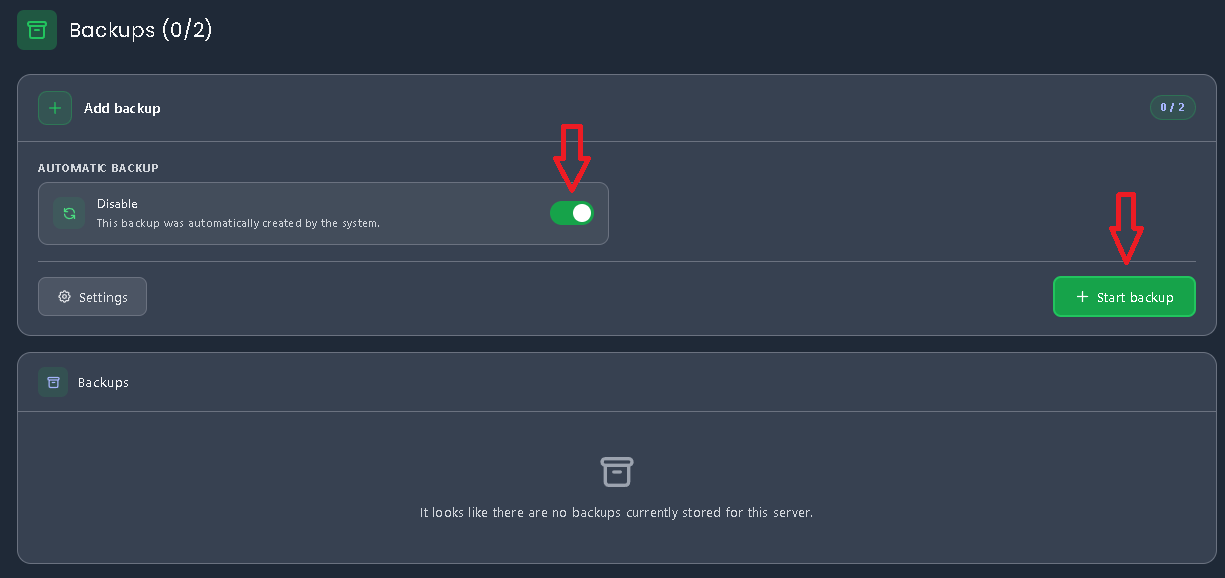
Enter a descriptive name to easily identify it (e.g.,
Before-updating-1.20or today's date).Wait a few seconds for our system to finish packaging all your files.
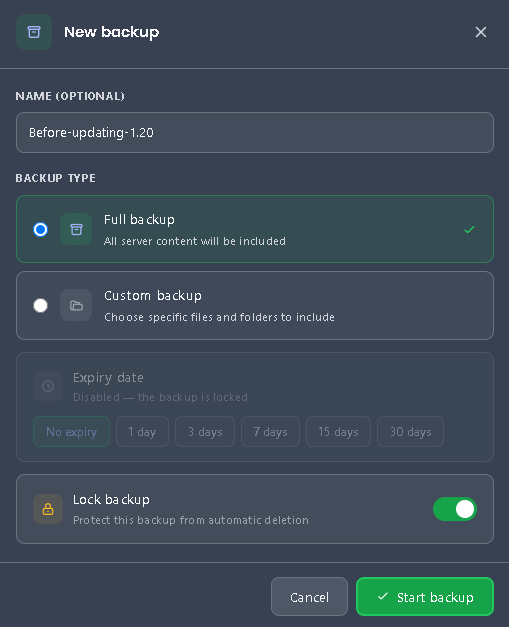

2. The most convenient option: Enable Automatic Backups
So you don't have to worry about remembering to take manual backups every day, you can let our system do the work for you:
- Stay right inside the same Backups tab.
- You will see an option with a toggle / radio button to enable automatic backups.
- Simply check / toggle it on.
- That's it! From that moment on, our system will automatically generate recurring backups in the background without you having to do anything else.
3. Additional method (Manual): Downloading a backup to your computer
Keeping backups on our panel is the fastest and most convenient option for everyday use. However, we always recommend downloading a copy to your computer so that you have 100% ownership of your files, can play your world offline in Singleplayer, or keep it safe if your plan ever expires or you decide to pause your subscription:
- Make sure your server is "Offline" / stopped (this is essential so world files don't save incompletely during the process).
- Go to the Files tab (File Manager) in our panel.
- Select the key folders and files of your server:
- 📁 Your worlds: the
worldfolder (andworld_nether/world_the_endif you use Paper or Spigot). - 📁 Your configurations: the
pluginsormodsfolder. - 📄 Your settings: the
server.propertiesfile.
- 📁 Your worlds: the
- Click the Archive (Compress) option to pack everything into a single
.zipfile. - Right-click the generated
.zipfile and select Download. Save it in a safe folder on your PC or upload it to your personal cloud storage (Google Drive, Dropbox, MEGA).
4. When is it MANDATORY to make a manual backup?
Even if you have automatic backups enabled, we recommend creating an immediate manual backup during these critical moments:
- ⚠️ Before changing the server version: Upgrading or downgrading versions through our software selector can alter block generation and break your map.
- ⚠️ Before adding, updating, or removing Mods/Plugins: Removing a mod that added custom blocks or items can crash the world and prevent it from starting up.
- ⚠️ Before using massive world-editing commands: If you plan on using tools like WorldEdit to paste or manipulate massive structures.
5. How to restore a backup if something goes wrong
If you made a configuration error, installed something that broke the map, or had an in-game accident:
- Stop your server completely from the panel.
- If using our panel tool: Go to the Backups tab, find the backup made before the problem occurred (manual or automatic), and click Restore.
- If using your manual copy: Go to Files, completely delete the damaged world folder (
world), upload your backup.zipfile, and click Unarchive (Extract). - Start the server and check the console to make sure everything is back to normal.
❌ What NOT to do
- Make manual backups while the server is running: If you try to compress or copy your world manually while the server is online, files will be actively written to memory and the backup will end up incomplete or corrupted.
- Overlook local backups: While your automatic and manual backups are always accessible on our platform, keeping a local copy on your computer lets you play your world offline and keep it forever even if your plan expires in the future or you choose not to renew it.
- Restore a world on top of existing files: Before restoring a world manually, make sure to delete the broken previous folder. If you extract a backup on top of old files without clearing them, data will get mixed up and cause terrain glitches.
- Fail to verify the downloaded file: When downloading your
.zipto your PC, make sure it is not 0 bytes and that you can open it without errors to verify that the download completed properly.