

Activate Whitelist
На этой странице
The Whitelist is the most important security tool if you want to enjoy a private server exclusively with friends. It functions just like a guest list: only the players you add will be able to join, blocking access to any stranger or unwanted player trying to cause trouble.
(Note: You manage this entire process in real time directly from our Control Panel's Console).
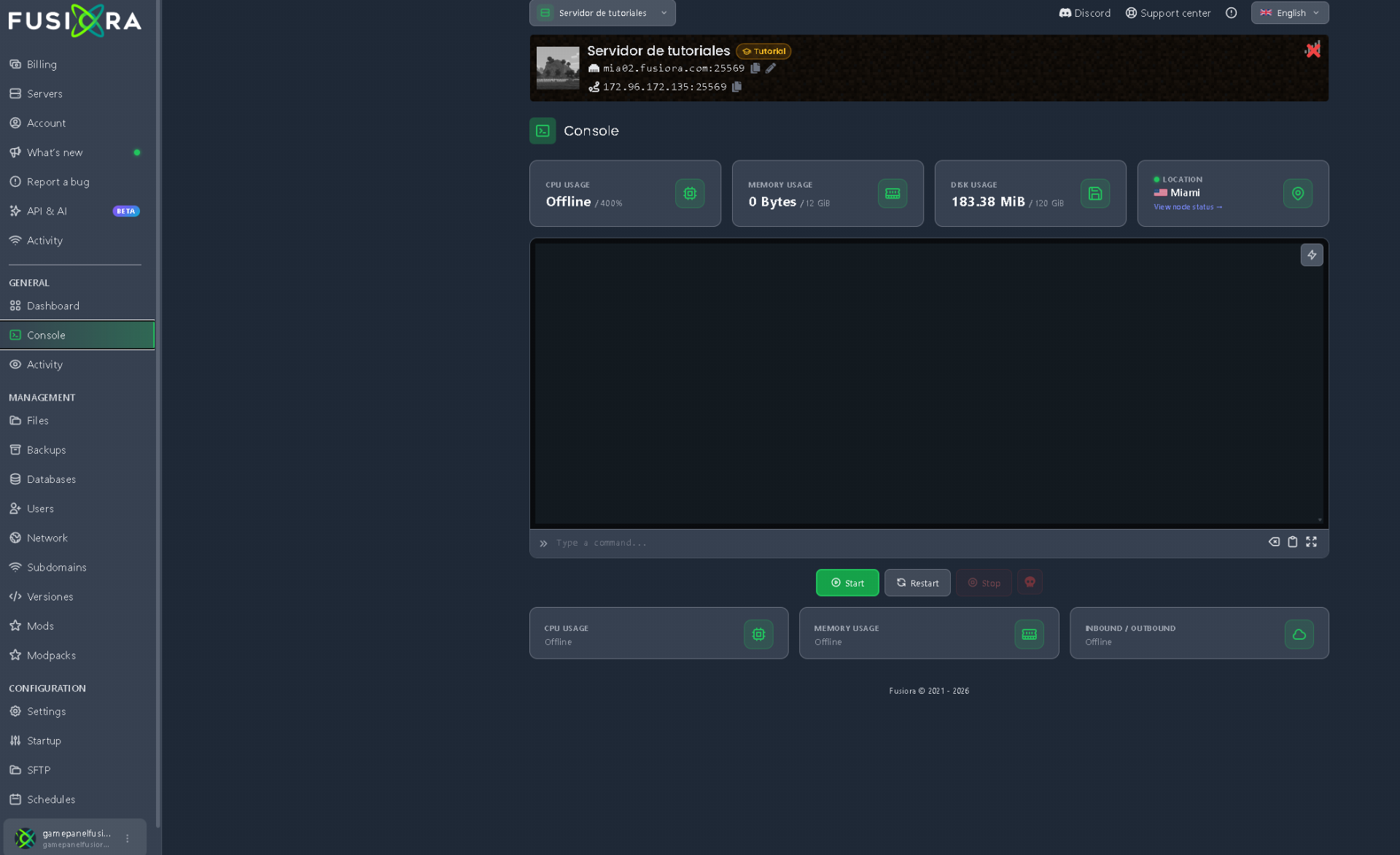
1. Enabling the Whitelist on your server
The fastest and most convenient way to turn on the whitelist is through the console, without needing to restart the server:
- Log in to our control panel and go to the Console tab.
- In the console's command bar, type:
whitelist on - Press Enter. You will see a confirmation message from the server: Whitelist is now turned on.
(Remember: in our web console, never use the forward slash / at the beginning of the command).
2. Adding your friends to the list
Once the whitelist is active, you need to authorize each person who will play:
- In the same Console, type the following command:
whitelist add YourFriendsName - Press Enter. The server will confirm that the player was successfully added.
- Repeat this command for every friend you want to invite (make sure to add yourself as well so you don't get locked out!).
If you ever want to revoke someone's access, simply type:whitelist remove YourFriendsName
3. Useful commands for daily management
From the console, you can easily review and manage the list with these commands:
- 📋 View authorized players:
whitelist list(displays the names of all registered players). - 🔄 Reload the list:
whitelist reload(useful if you made manual edits to the files). - 🔓 Open the server to everyone (disable whitelist):
whitelist off
4. Managing it directly from in-game
If you already have administrator permissions (OP) on your server, there's no need to open the control panel every time you want to add a new friend:
- Press the T key in Minecraft and run the exact same commands directly from the in-game chat, this time using the forward slash
/:/whitelist add Friend/whitelist remove Friend/whitelist list
❌ What NOT to do
- Type the forward slash
/in the web console: A very common mistake is writing/whitelist onin the panel's console. In the console, commands always go without a slash (whitelist on); slashes are only used inside the in-game chat. - Misspell the username: Minecraft usernames are case-sensitive. Make sure to type your friend's exact nickname, respecting uppercase, lowercase, and underscores, so the server recognizes them properly.
- Add players without enabling the whitelist: Running
whitelist addadds the player to the database, but if you haven't previously runwhitelist on, the server will remain wide open to everyone. - Forget Bedrock prefixes (GeyserMC): If your server allows mobile or console players via Geyser, keep in mind that their names often have a special prefix (like a dot
.or an asterisk*). You must include that prefix when adding them (for example:whitelist add .BedrockFriend).