

How to Install Plugins in Minecraft
このページの内容
Plugins allow you to add new features to your server (such as economy systems, house protection, or extra commands) without players having to install anything on their computers.
(Note: This entire process is done from your hosting's web "Control Panel", not from the Minecraft game itself)
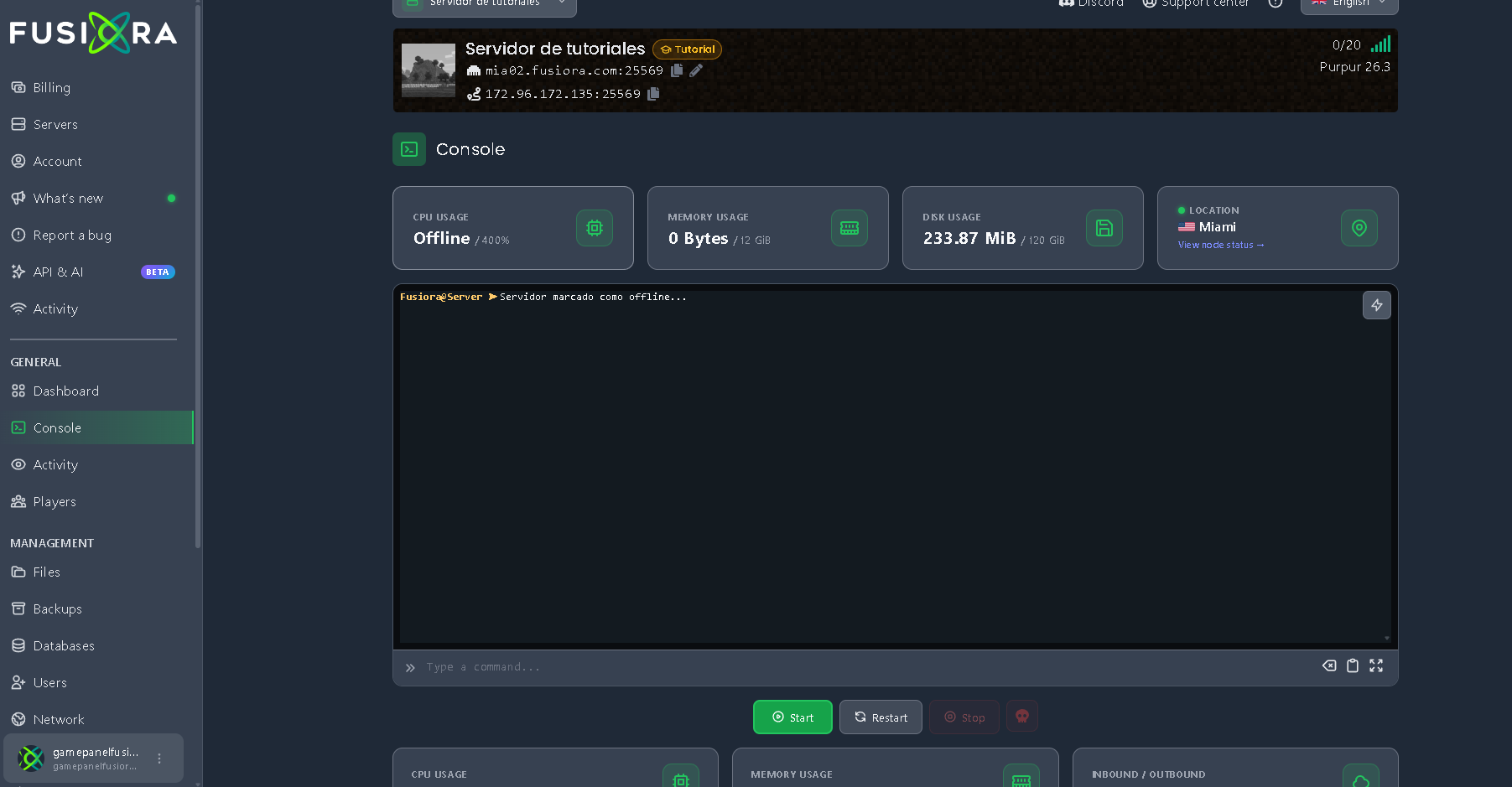
1. The most important requirement (Software)

You cannot install plugins on a normal "Vanilla" server.
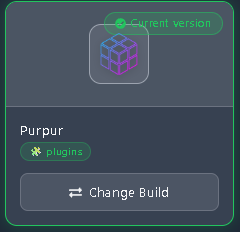
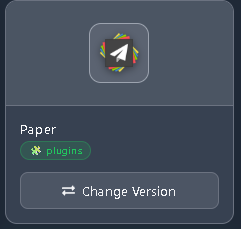
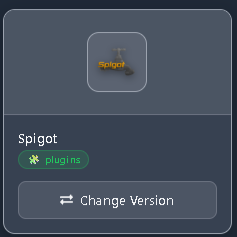
For plugins to work, your server must be using compatible software. We recommend using Paper or Spigot.
(Note: If you want to have Mods and Plugins at the same time, you must install a "Hybrid" software in your panel such as Arclight, Mohist, or Magma).
If your server is on Vanilla, go to the versions section in your panel and change it to a compatible software before continuing.
2. Download the plugin
Search for the plugin you want on safe and official websites (such as SpigotMC, Modrinth, or Bukkit).
- The file you download must always end in .jar.
- Make sure to download the version of the plugin that is compatible with your server version (e.g. 1.20.4).
3. Upload the plugin to your server
Log into your control panel and make sure the server is "Turned off" (Stopped).
Go to the Files tab (File manager).

Look for a folder called
pluginsand enter it. (If the folder does not exist, it is because you did not install the correct software in step 1).Drag and upload your .jar file inside this folder.

IMPORTANT: Never upload compressed files (.zip or .rar). If you downloaded a .zip, you must extract it first on your computer and upload only the .jar file.
4. Start up and verify
Go back to the console and turn on the server. Upon startup, the plugin will automatically create a new folder with its name inside plugins; inside there you can configure its settings.
How to know if it installed correctly?
Go to the panel Console and type the command pl or plugins (remember: without using the slash / in the web console).
The server will respond with a list of plugins. If your plugin's name appears in green, it is working properly. If it appears in red, it means there is an error (you probably downloaded an incompatible version).

❌ What you should NOT do
- Putting mods in the plugins folder: Mods and plugins are different files even though both end in
.jar. If you use a hybrid server (Arclight, Mohist, Magma) that allows using both at once, always remember that plugins go exclusively in thepluginsfolder and mods go in themodsfolder. If you mix them, the server will throw an error. - Using the /reload command in-game: Even though many YouTube tutorials say to use
/reloadto load new plugins, this corrupts the server's memory in the long run. It is always better to restart the server completely from the panel.