

How to install mods in minecraft
On this page
Mods (modifications) allow you to drastically change the game, adding new blocks, creatures, dimensions, or advanced mechanics to your server.
(Note: The server-side installation is done from your hosting's web "Control Panel").
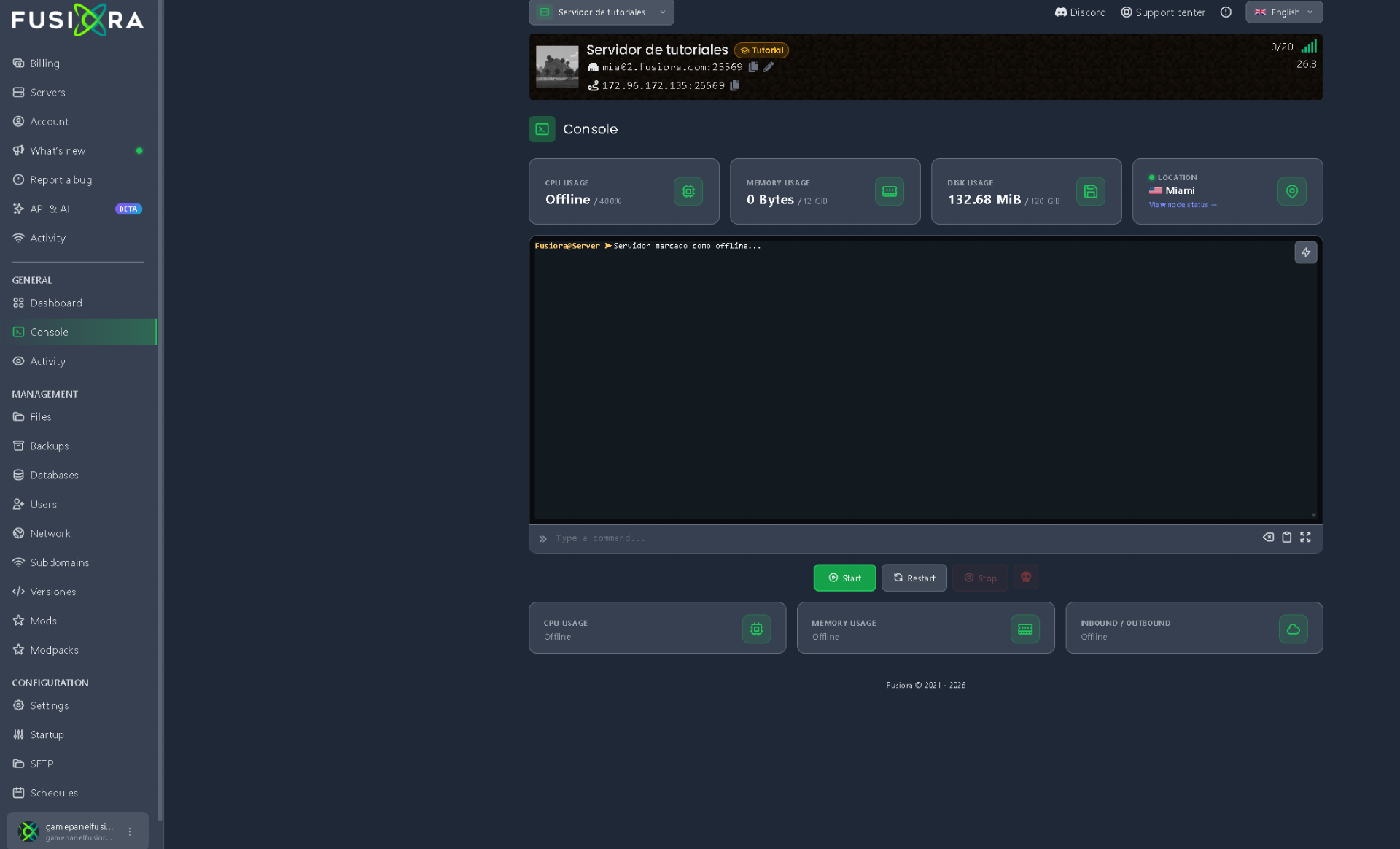
1. The most important requirement (Software)
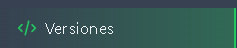
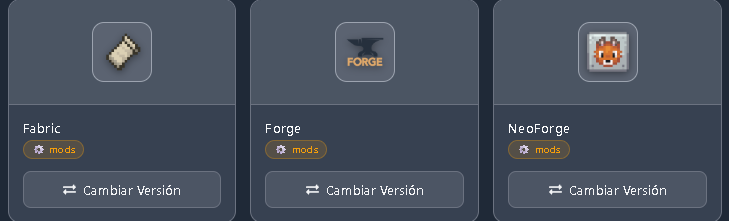
You cannot install mods on a "Vanilla" server (normal Minecraft) or on pure plugin servers like Paper or Spigot. For mods to work, your server must be using software designed to read them, such as Forge, Fabric, or NeoForge.
(Note: If you want to have Mods and Plugins at the same time, you will need to install a "Hybrid" software in your panel, such as Arclight, Mohist, or Magma).
If your server is running Vanilla or Paper, go to the versions section in your panel and change it to a compatible modded software (like Forge) before continuing. When changing software, it is always recommended to do so with a clean server or having made a backup.
2. Downloading the mod
Search for the mods you want on safe and official websites (the best and most reliable are CurseForge and Modrinth). When downloading a mod, you must be careful with three very important things:
- Game version: If your server is for version 1.20.1, the mod must be strictly for 1.20.1.
- The Loader: Mods are made for specific software. Forge mods DO NOT work on Fabric, and vice versa. Make sure to download the version of the mod that matches your server's software.
- Dependencies (Libraries): Many mods need an "extra" mod to work (for example, GeckoLib, Cloth Config, or Fabric API). Always read the description on the mod's page; if the creator states that it requires a dependency, you must download it too.
3. Uploading the mod to your server
Enter your control panel and make sure the server is "Offline" (Stopped).
Go to the Files tab (File Manager).

Look for a folder called
modsand enter it. (If the folder doesn't exist, it's because you didn't install the correct software in step 1, or you can create it manually yourself, making sure it is written in lowercase).
Drag and drop your
.jarfiles into this folder (you must upload both the main mod and its dependencies).
4. Starting and verifying
Go back to the console and start the server. Upon startup, the server will read the files in the mods folder and begin integrating them into the world.
How to know if it installed correctly?
Unlike plugins, there is no simple command like /plugins. You must observe the panel's Console while the server starts.
- ✅ If you see the server boot up correctly, mark the status as "Online," and it doesn't stop, the mods have loaded successfully.
- ❌ If the server suddenly shuts down on its own (crashes), read the error in the console: it is highly likely that you are missing a dependency or uploaded a mod for the wrong version.
5. The mandatory step: Your players (Client-side)
As mentioned at the beginning, putting the mods on the server is not enough. For your friends to be able to join your server, they must:
- Install the same loader (Forge or Fabric) on their own game (in their Launcher).
- Place exactly the same
.jarmods you put on the server inside themodsfolder on their computers (usually in%appdata%/.minecraft/mods).
❌ What NOT to do
- Ignore dependencies: 90% of errors and crashes when installing mods occur because users forget to download the library mod required for everything to work.
- Put plugins in the mods folder: Mods and plugins are different even though they share the
.jarformat. If you use a hybrid server (Mohist, Magma), remember that mods go strictly in themodsfolder and plugins in thepluginsfolder. If you mix them up, the server will throw massive errors. - Upload client-side mods to the server: There are mods that are purely visual or for performance for the player (like Optifine, Iris Shaders, or minimap mods). These are only needed by the player on their computer and SHOULD NOT be uploaded to the server's
modsfolder, as they can cause it to crash. Only upload mods to the server that add actual content to the game (blocks, animals, dimensions, weapons). - Use the
/reloadcommand in-game: Using the/reloadcommand to reload the server from inside the game while having active mods can cause extreme lag, data corruption, and severe memory issues. Always safely stop and start the server using the buttons in your control panel.